
Use the real layout as your starting point
Short answer: edit a supported webpage when the question is about copy, hierarchy or a nearby UI state—not when the concept requires a new interaction model.
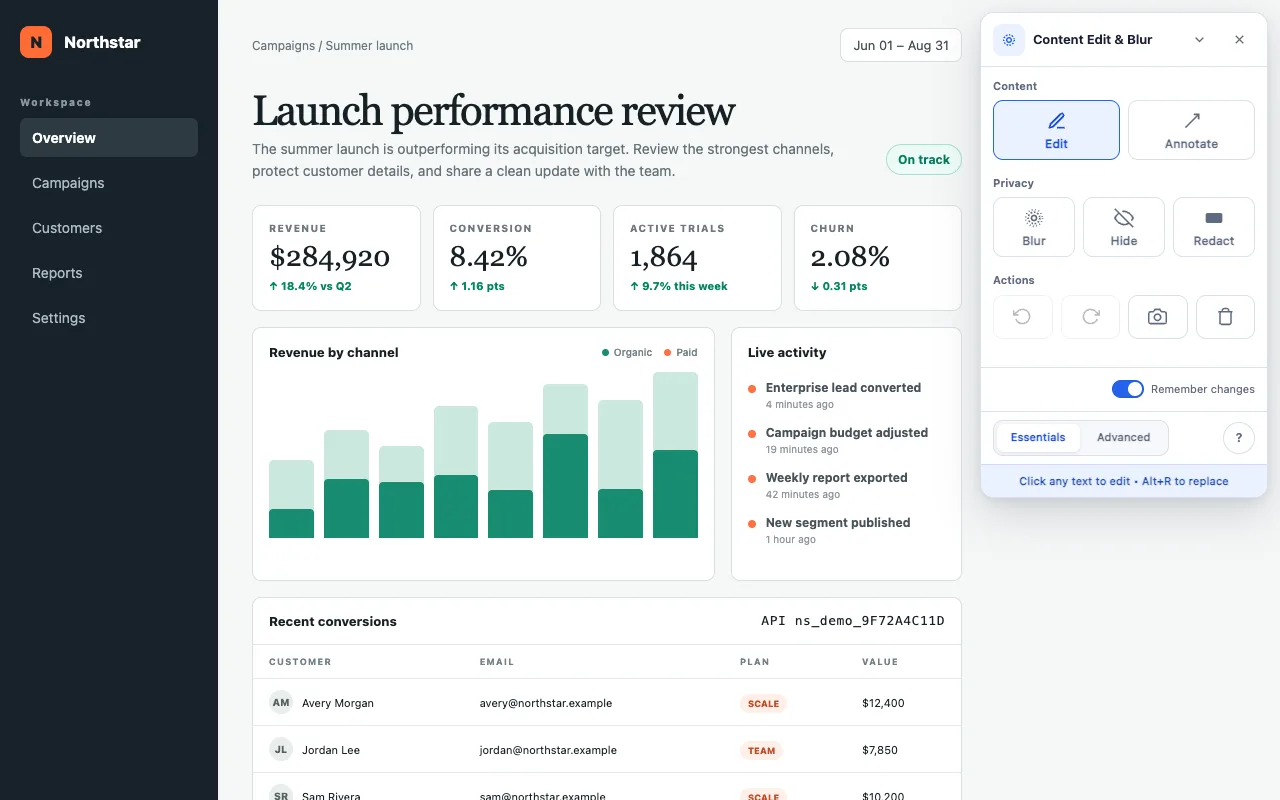
A screenshot mockup is useful when a product manager, designer, writer or support lead needs to show one focused change quickly. Existing typography, spacing and responsive behavior stay intact while the content changes.
The extension changes the rendered DOM and does not intentionally submit those edits to the site. The underlying site remains connected and its scripts may observe changes, so use a staging environment, demo account or trusted page for mockups and local image replacement.
Build the mockup in place
Start from a representative state
Open the route, viewport and data state closest to the concept. Use fictional or approved demonstration data whenever possible.
Choose Edit and replace the copy
Click text to edit it directly. Select text and press Alt+R when the same label or value should change everywhere on the page.
Swap images when needed
While Edit is active, double-click a page image and choose a file from your device. It is loaded into the current DOM; the underlying site's scripts may observe or transmit DOM changes, so use a staging or trusted page.
Remove visual noise
Use Hide for content that distracts from the proposal. Use Blur for non-sensitive supporting data that should recede without changing the layout.
Explain the proposed change
Add a restrained arrow, box, highlight or text note. Numbered Steps in Advanced work well for a short walkthrough.
Capture the clean result
Use Screenshot to save the visible viewport. The toolbar, picker, editing handles and transient controls are excluded; finished annotations stay in the image.
Make the concept believable
- Keep replacement copy close to realistic production length.
- Use internally consistent dates, totals and units.
- Label fictional customer or financial information clearly when context allows.
- Capture the same viewport your audience normally reviews.
- State that the image is a proposal when it could be mistaken for shipped behavior.
Do not use edited pages to impersonate real records or misrepresent transactions. The tool is designed for legitimate mockups, documentation, privacy and communication.
Show the idea in its real context.
Free, with no paid features or account. Optional sponsorship unlocks nothing.