
Use redaction when the content must not leak
Short answer: blur changes how details look; redaction replaces the captured pixels. Use Redact for secrets, identifiers and personal information.
A blur preserves the source pixels and spreads them across nearby pixels. That is useful when a value only needs visual de-emphasis, but it is not the same as removing it.
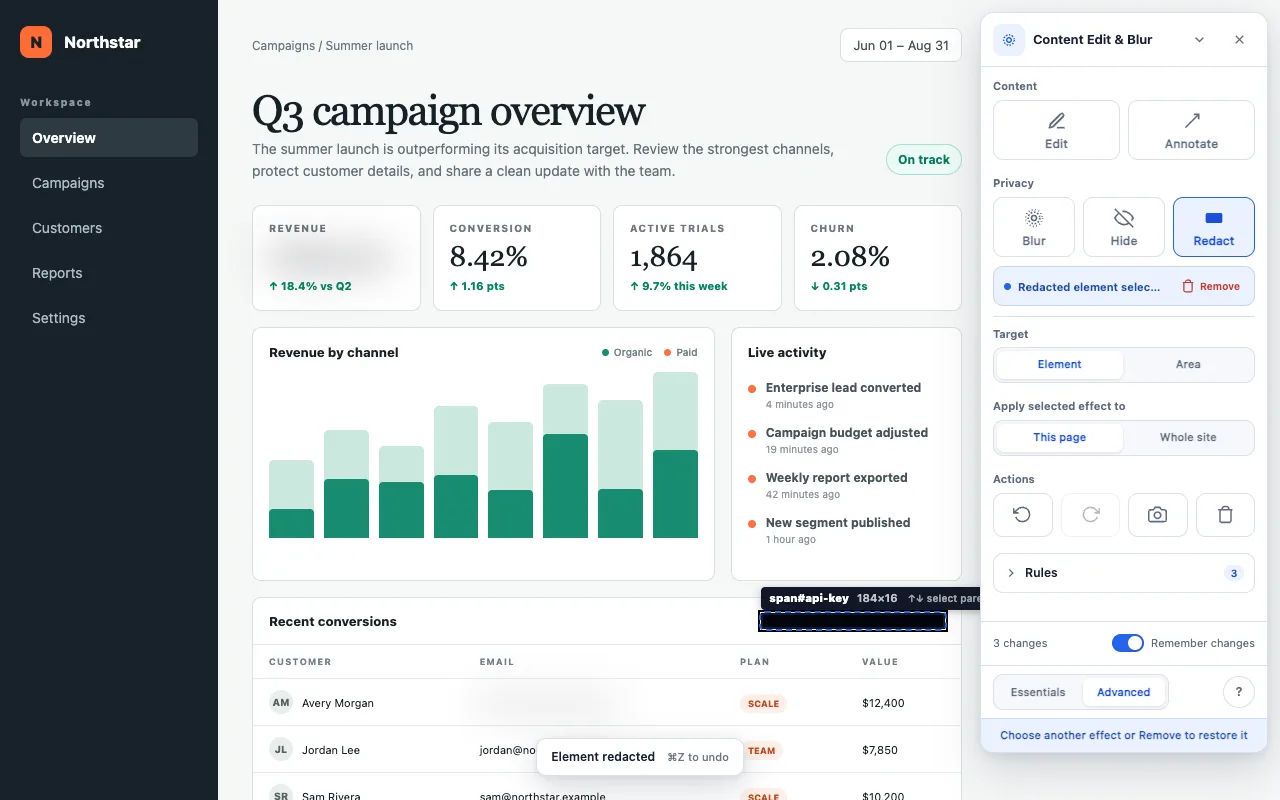
Content Edit & Blur paints an opaque block over a redacted element or rectangular area. The screenshot contains the block rather than a softened version of the underlying text, image, video or canvas.
A reliable redaction workflow
Inventory what should stay private
Scan the visible page for names, email addresses, account numbers, financial values, internal URLs, tokens and API keys. Check headers, tables, notifications and browser-visible page content.
Choose Redact
Open the extension toolbar and select Redact from the Privacy tools. The picker outlines the exact element that will be covered before you click.
Choose Element or Area
Use Element when the private value has a clean page element. Use Area when you need a fixed rectangle across part of a chart, canvas, image or mixed content.
Apply every redaction
Click an element or drag an Area. Select an existing effect to change it, move or resize an Area, or remove it explicitly. Undo remains available if the wrong target was chosen.
Capture from the extension
Use Screenshot after reviewing the page. The toolbar, picker, editing handles and transient controls hide before the visible viewport is captured; finished privacy effects and annotations stay in the image.
Verify before sending
- Open the saved PNG and inspect every edge of each redaction.
- Confirm that names, values and identifiers are absent from all visible regions.
- Check the browser chrome separately if its URL or tab title contains private data.
- Use a fresh screenshot after any page reflow, zoom or navigation.
- Keep the original private screenshot out of the shared folder or message.
Scope matters: a page rule follows the URL origin and path, ignoring the query and fragment. A site rule follows one origin, not its subdomains. Query-based routes can therefore share page rules. Saved rules are a convenience, not a confidentiality control: pause sharing during reloads or navigation and verify every effect again. Sandboxed or opaque-origin frames remain session-only.
Redact it where it appears.
Free, with no paid features or account. Optional sponsorship unlocks nothing.